A Credit Note is used to adjust or reverse an existing Sales Invoice when a customer returns goods. This process correctly updates the customer's outstanding amount and ensures the transaction is recorded as a return.
1. Initiating the Credit Note from the Original Invoice
The best and most accurate way to create a Credit Note is directly from the Original Invoice:
- Locate the Original Sales Invoice:
- Navigate back to the Sales Invoice list
Accounting>Sales Invoice Click on the submitted Sales Invoice that you need to credit
- Navigate back to the Sales Invoice list
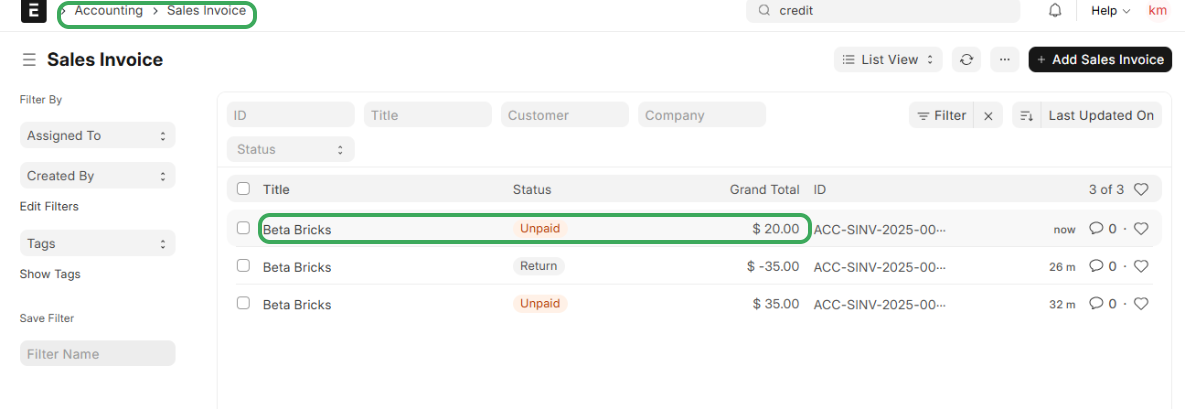
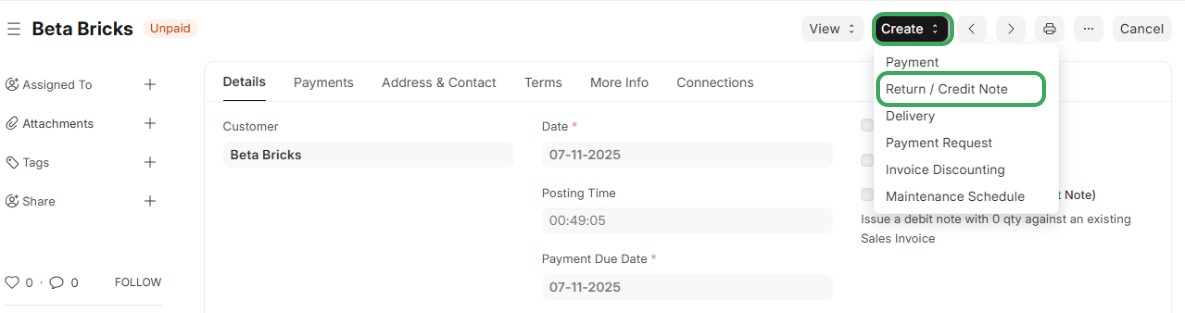
Create the Return Document:When you are inside the Submitted Sales Invoice, click the Create + button in the top right cornerFrom the drop-down menu, select Return / Credit Note.
2. Reviewing and Editing the Credit Note Details
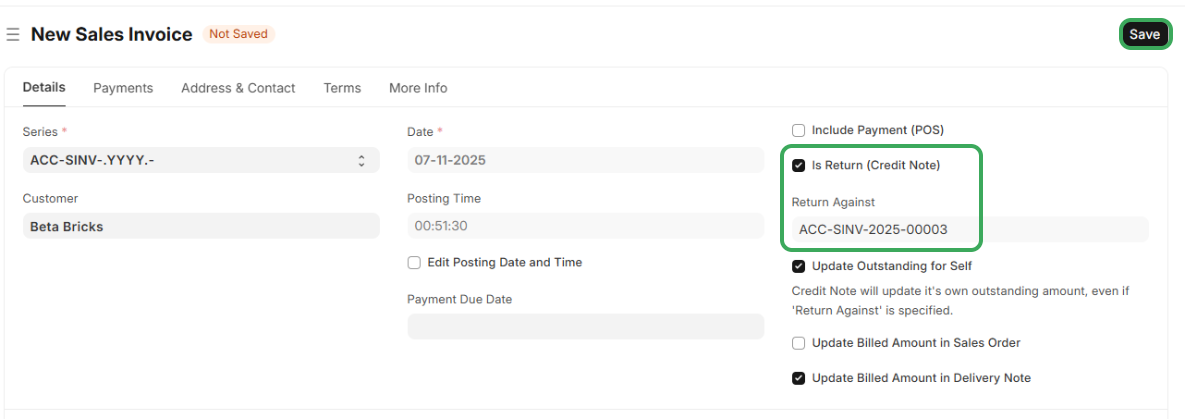
A new Sales Invoice form will open, pre-populated with data from the original invoice, but it will be a return:
The new document will have a status of Not SavedVerify that the checkbox Is Return Credit Note is checked.The Return Against field should automatically show the ID of the original Sales Invoice you are crediting e.g INV-2025-0003
3. Saving and Submitting the Credit Note
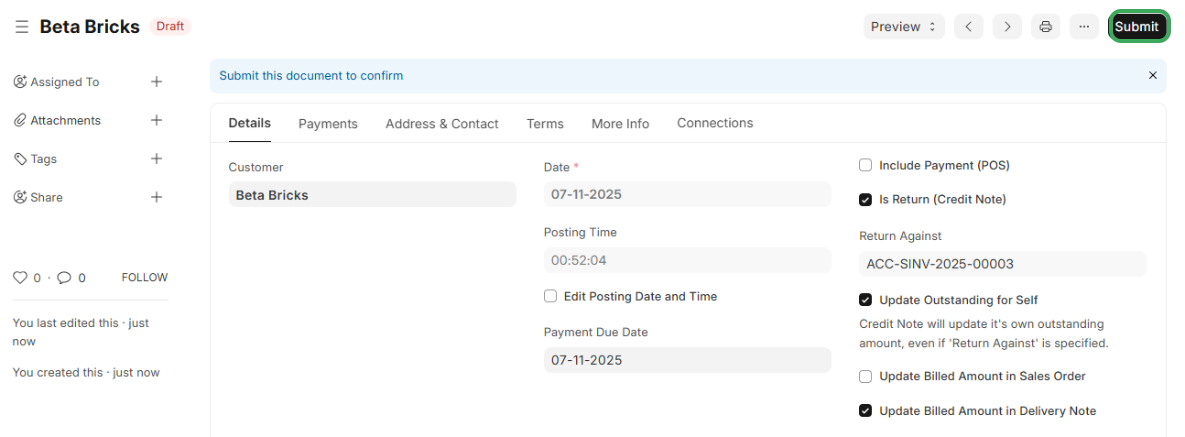
Once you are satisfied with the Credit Note
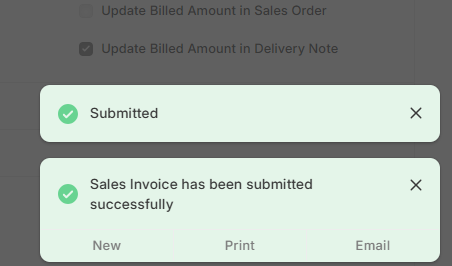
Click the Save button in the top-right corner. The document status will change to DraftClick the Submit button to fiscalize the Credit NoteYou will receive a confirmation message that the Credit Note has been submitted successfully
Was this article helpful?
That’s Great!
Thank you for your feedback
Sorry! We couldn't be helpful
Thank you for your feedback
Feedback sent
We appreciate your effort and will try to fix the article